
Open Your Virtualization Software
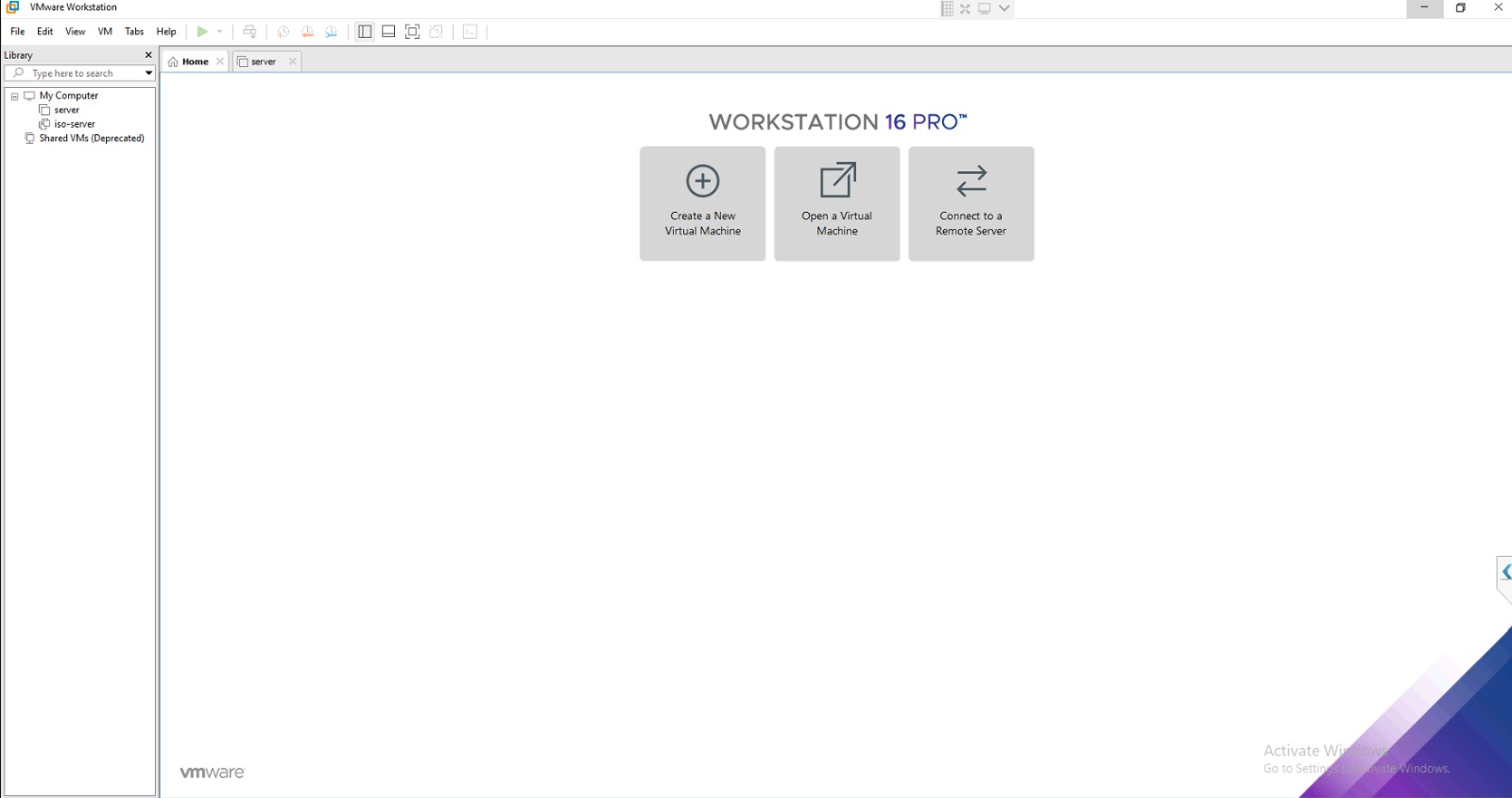
Launch your virtualization software(e.g. VMware Workstation 16 Pro). You will see the home screen with options to create, open, or connect to virtual machines.
Open Virtual Machine & Select the OVA File
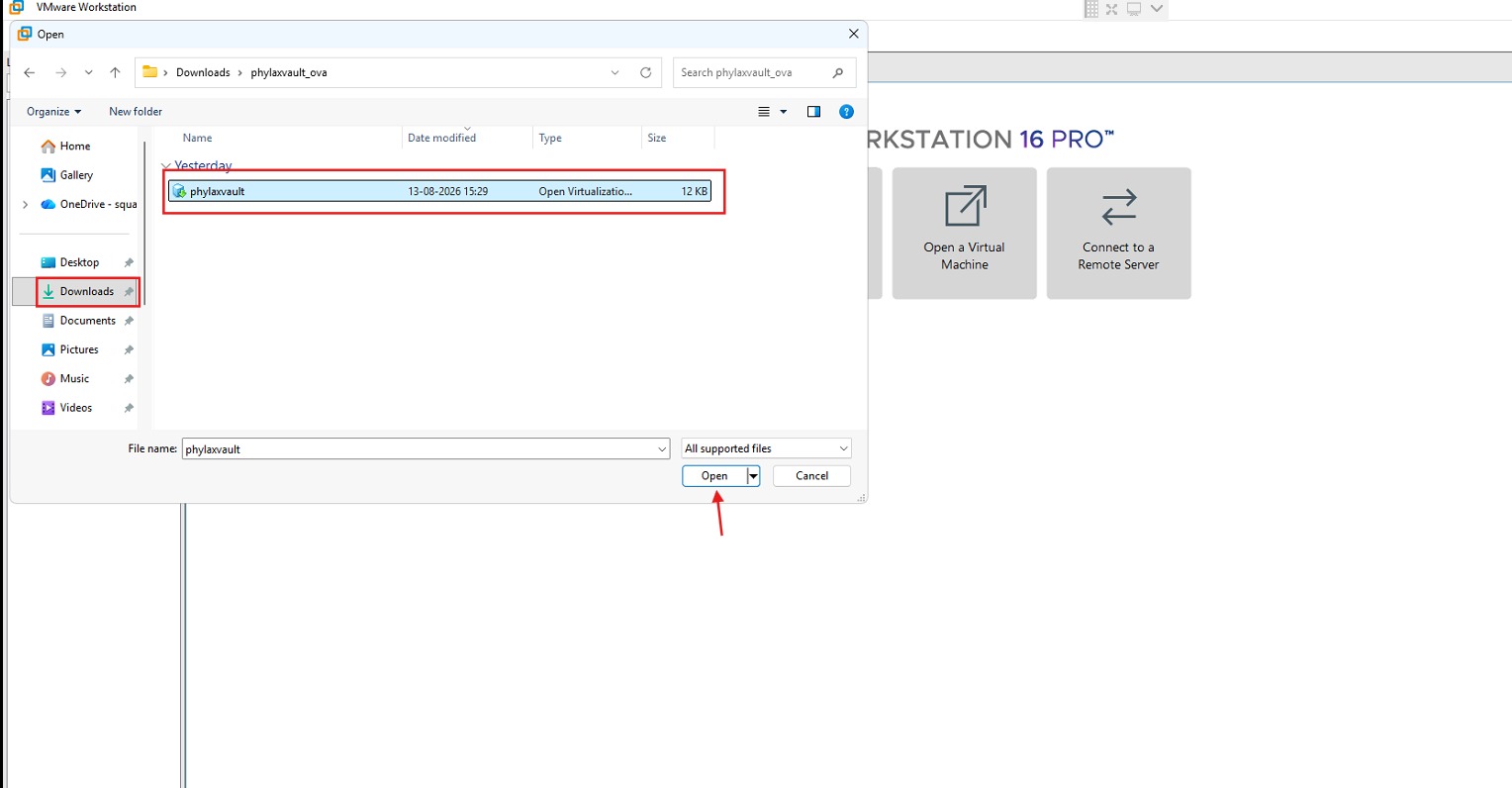
Click Open a Virtual Machine on the home screen. In the file browser that appears, navigate to the location where you saved the OVA, selectphylaxvault.ova (or Phylaxvault.ovf), and click Open.
Assign a VM Name & Import
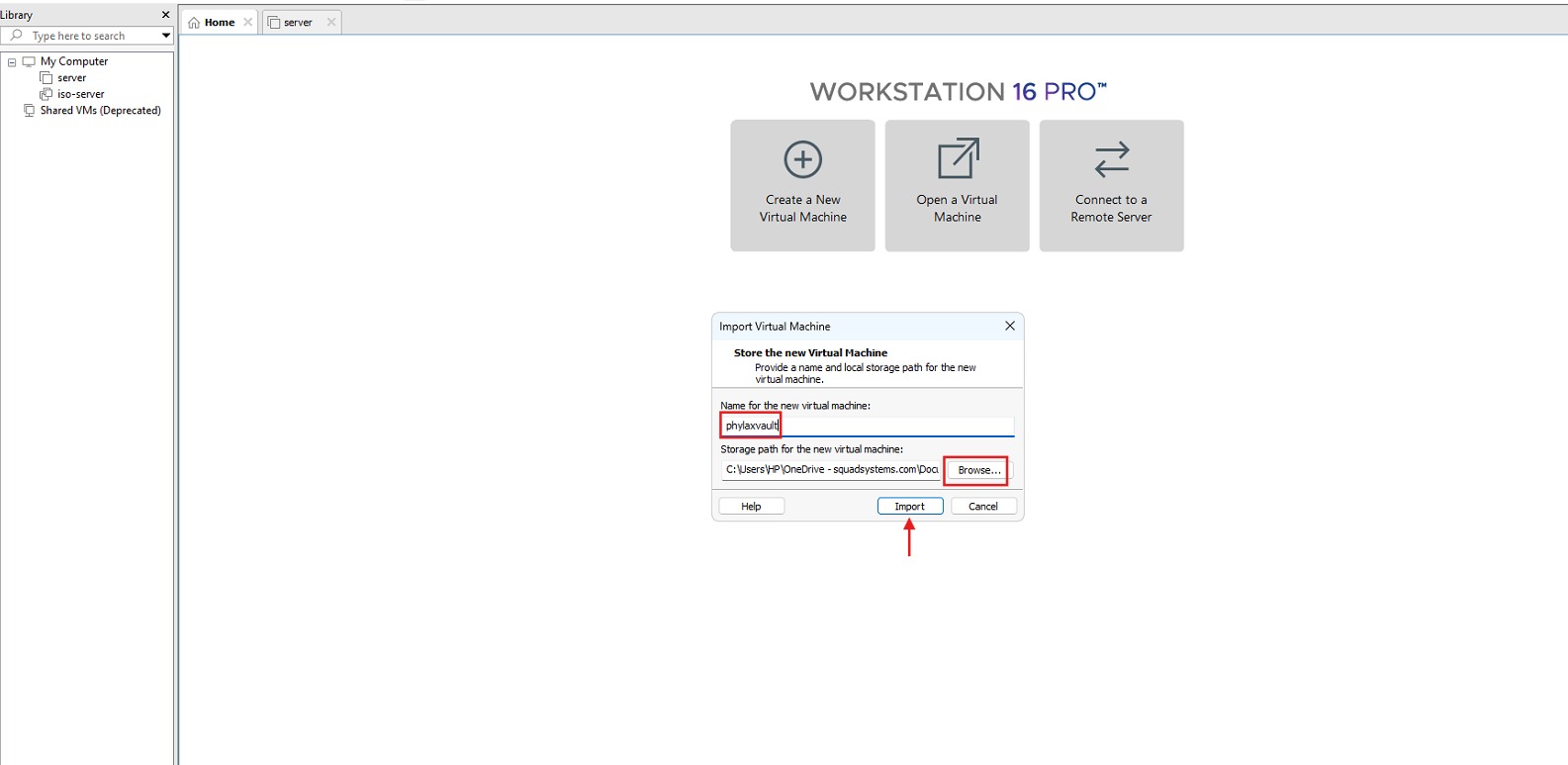
The Import Virtual Machine dialog will appear. Enter a name for the virtual machine — for example, mail-archiver — leave the storage path as the default or choose a preferred location, then click Import to begin the import process.
Power On Your VM
Once the import completes, your VM will appear in the library on the left. Select it and click Power On (or press the play button) to start the virtual machine. The server setup wizard will launch on the first boot.
ISO Boot & System Wizard Initialization
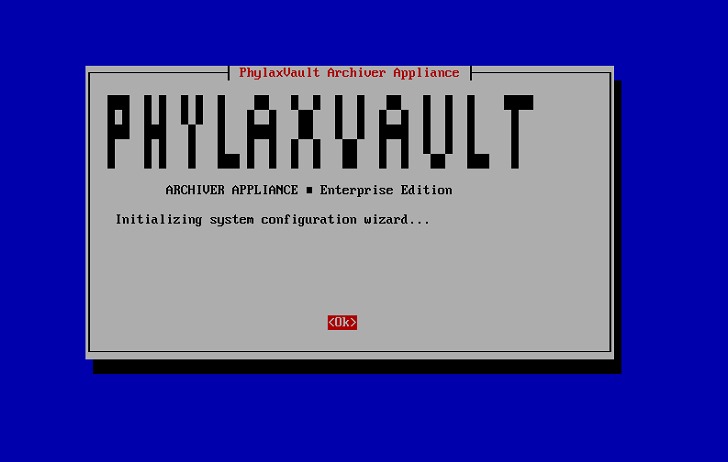
Upon successfully booting the system from the bootable ISO media (USB drive or Virtual Machine ISO image), the installer will launch the Phylaxvault Text-based User Interface (TUI) setup wizard.
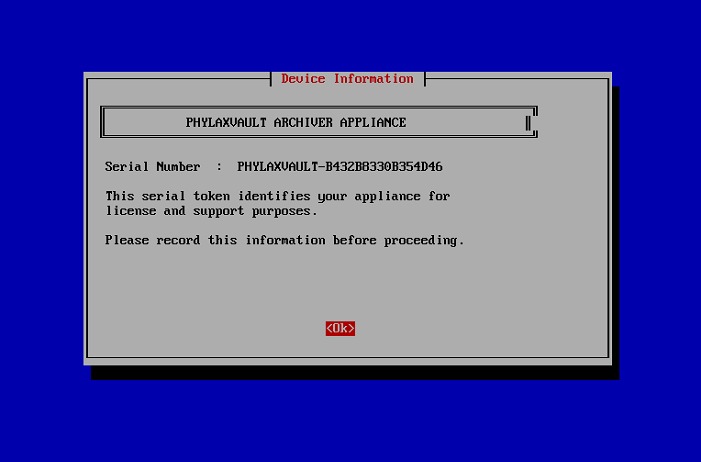
Device Information & Serial Token Record
The wizard will display the appliance's unique Serial Number Token generated specifically for this hardware or virtual machine instance.
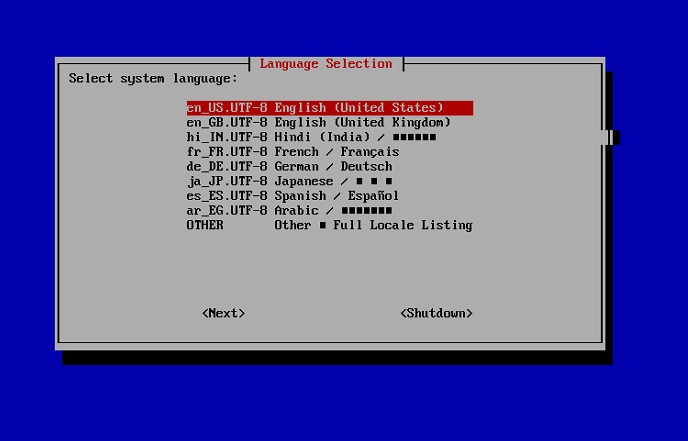
System Language & Locale Selection
Configure the primary language locale for system prompts, logging, and administrative console interfaces.
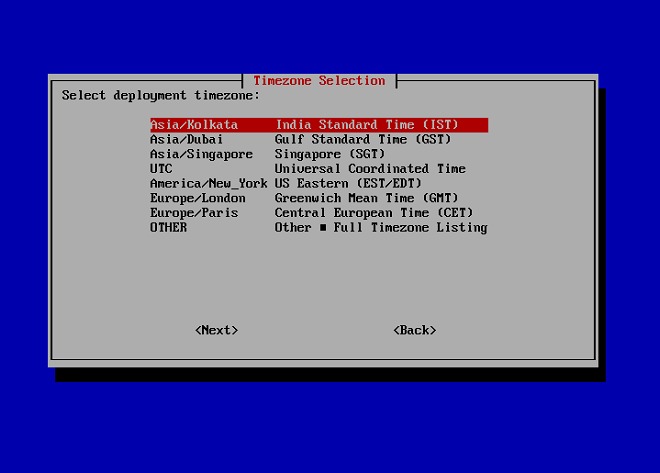
Timezone & System Clock Configuration
Select the deployment timezone to ensure precise timestamping for log management, email archiving indexes, audit trails, and automated background tasks.
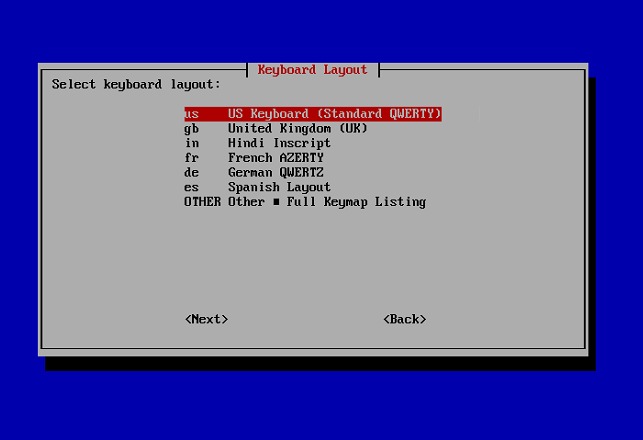
Keyboard Layout Selection
Choose the appropriate keyboard layout map for typing terminal commands, passwords, and system configuration data in the console.
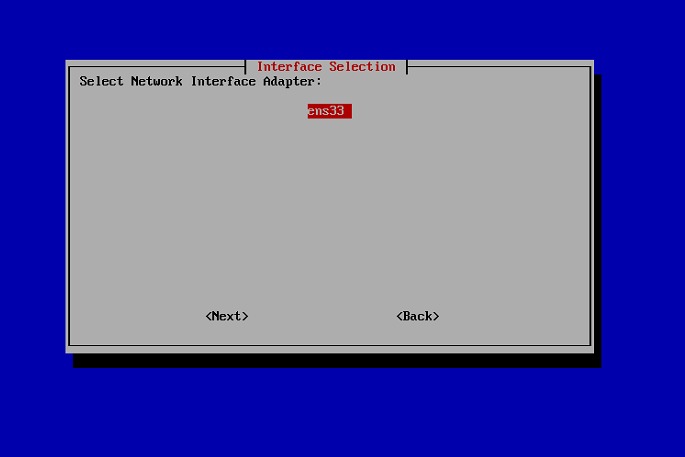
Network Interface Adapter Selection
Select the physical or virtual network interface card (NIC) that will serve as the primary network port for the Phylaxvault appliance.
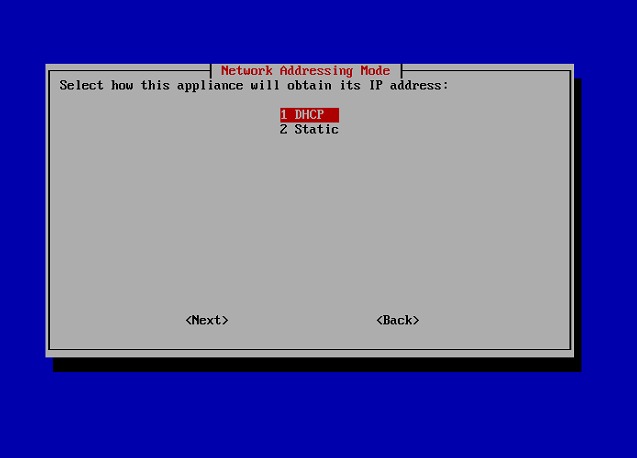
Choose DHCP or Static IP
On the Network Setup screen, select how this server should receive its network settings. Choose DHCP if your router or DHCP server will assign the address automatically. Choose Static if the archiver server must always use a fixed IP address.
Enter IP Address
For Static IP setup, enter the fixed address for this archiver server in CIDR format. Use the format 192.168.x.x/24, replacing the x values with the correct network address for your environment.
STATIC_IP=192.168.x.x/24
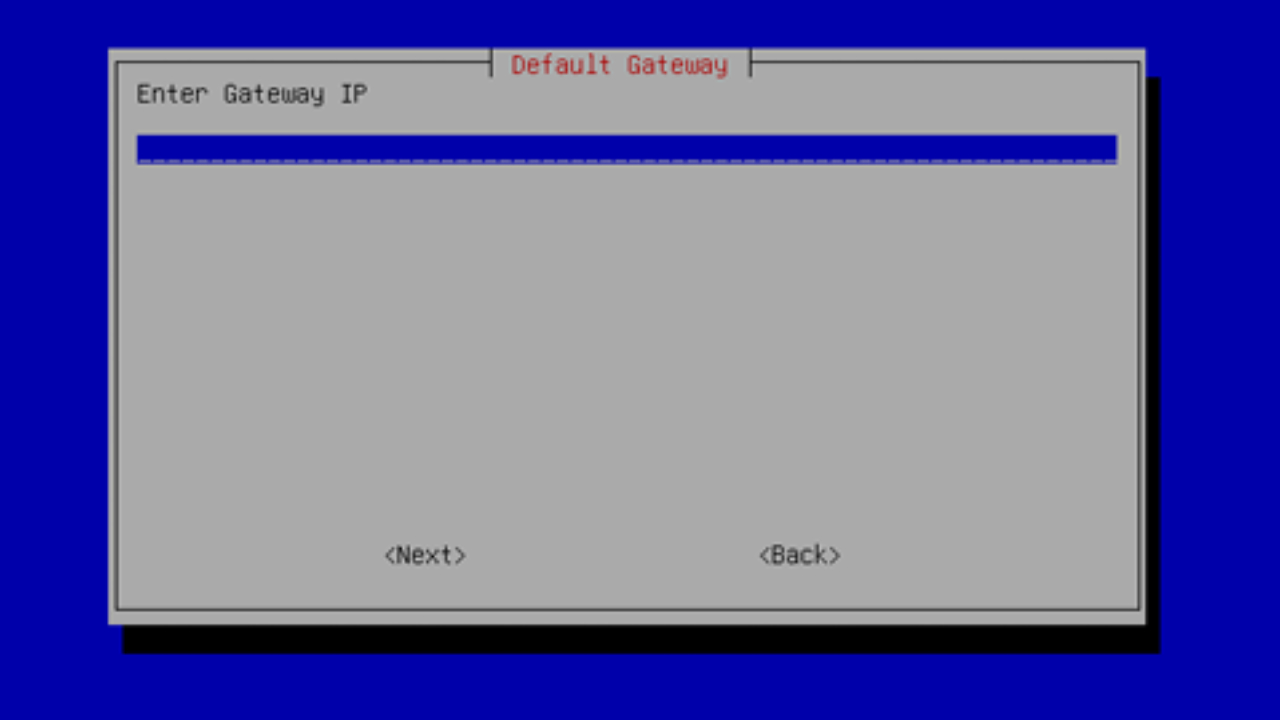
Enter Gateway
Enter the default gateway for the server network. This is usually the router or firewall address on the same subnet as the static IP.
GATEWAY=192.168.x.1
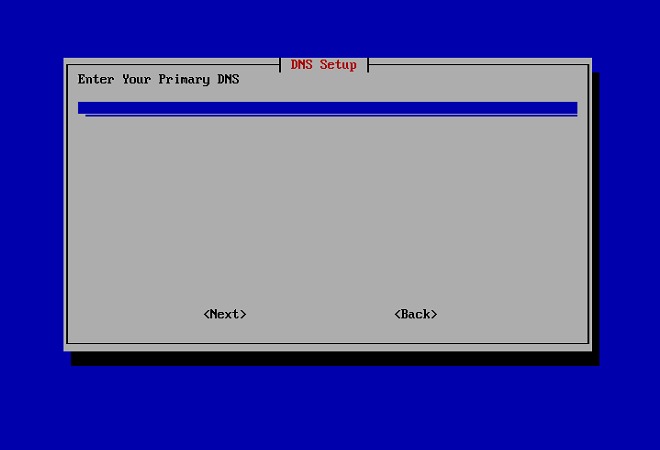
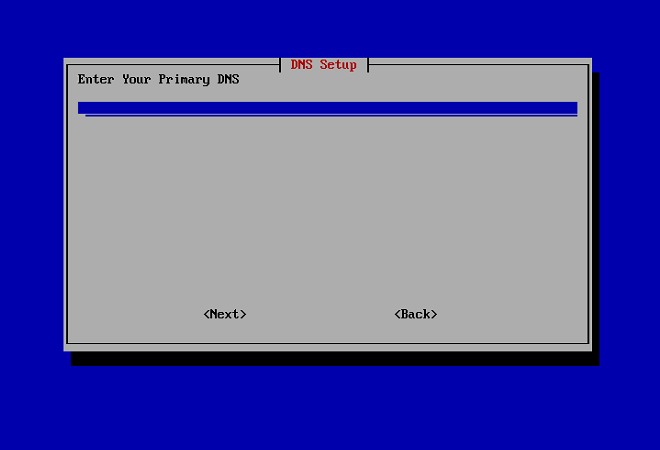
Enter Primary DNS
Enter the primary DNS server that the archiver should use for domain lookups. The screen suggests 8.8.8.8 as an example; replace it with your preferred internal or public DNS server if needed, then select OK.
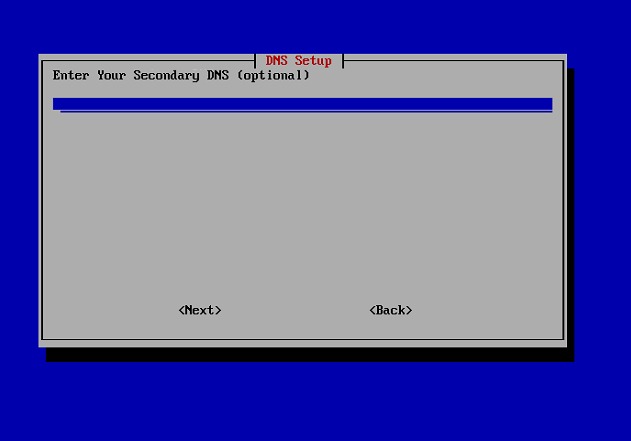
Enter Secondary DNS Optional
Enter a secondary DNS server if you have one. This field is optional, so you can leave it blank if the primary DNS server is enough, then select OK
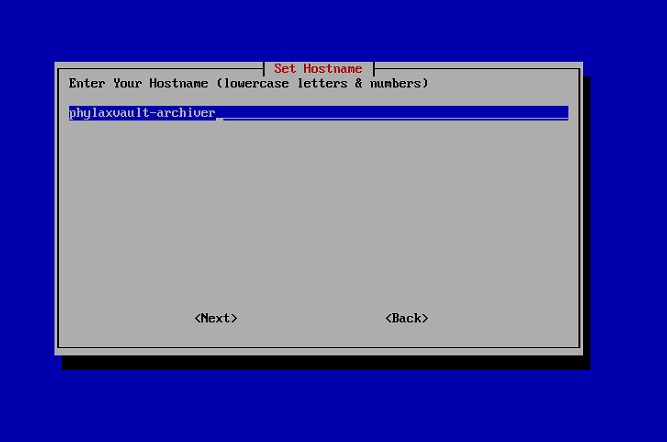
System Hostname Setup
Define a unique network Hostname for the server appliance to identify it on your local network domain and network management dashboards.
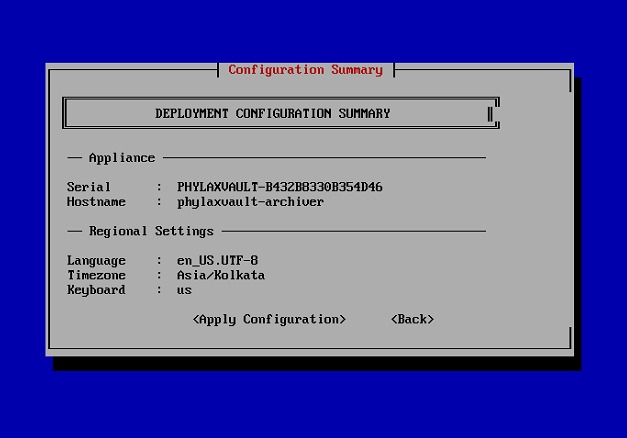
Deployment Configuration Summary & Confirmation
Review all appliance parameters and regional settings entered during the wizard setup before applying the system configuration.
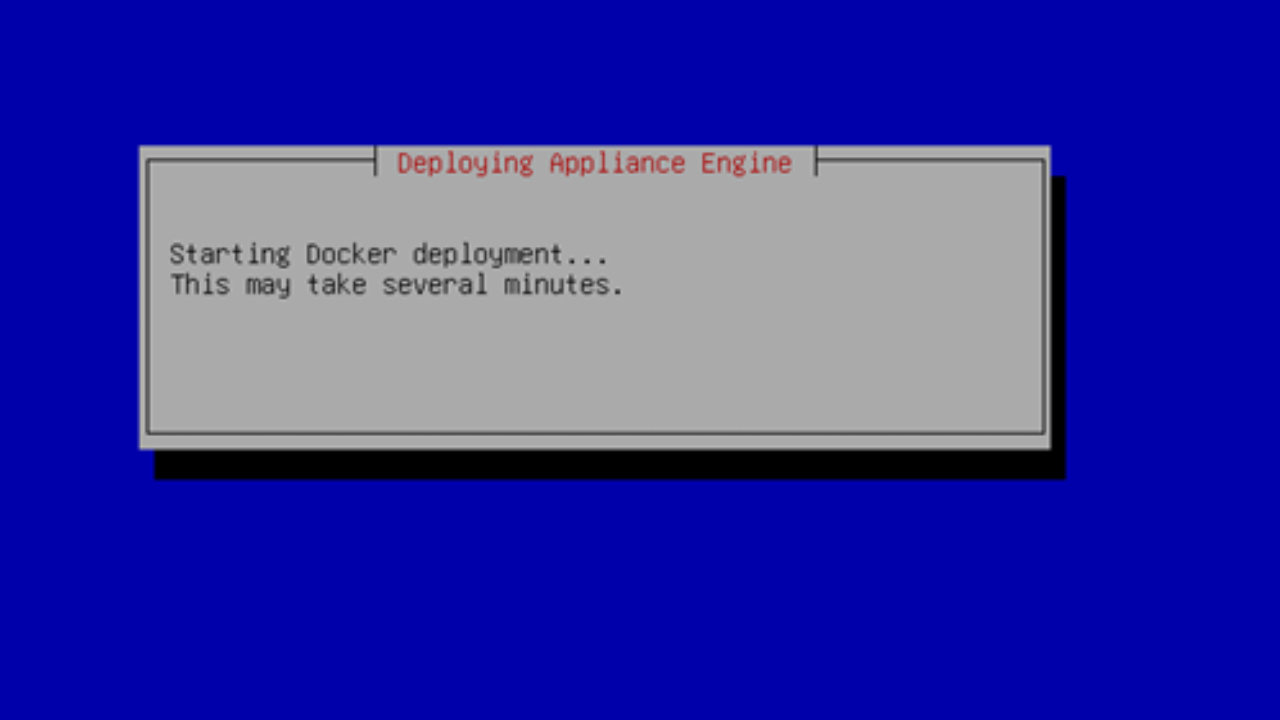
Appliance Engine Deployment
The system will complete initializing the Docker daemon and extract the microservice container stack.
Container Health Checks
You will see the Starting Appliance Engines progress bar advance from 0% to 100%
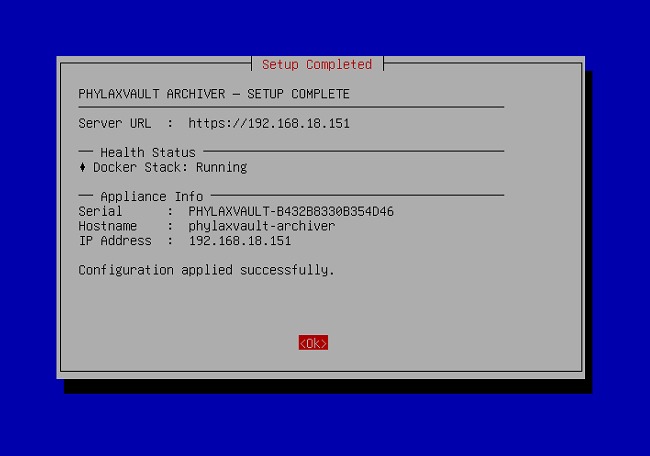
Setup Completed & Appliance Access Summary
Once all engine containers pass health checks, the wizard displays the final Setup Completed confirmation screen along with the secure HTTPS Web Dashboard access URL.
Bookmark the Access URL
Record the Server URL (e.g., https://server-ip). You will use this URL in any modern web browser to access the administrative portal.
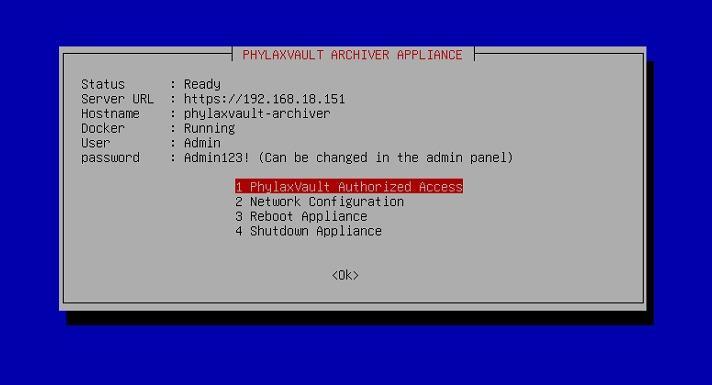
Post-Installation Management Console & Status Dashboard
After exiting the initial setup wizard, the system displays the permanent Phylaxvault Archiver Appliance Management Console. This TUI dashboard provides real-time system status and quick access to management tasks.
Management Menu Options
1. PhylaxVault Authorized Access: Opens an authorized root command-line shell for advanced system management.
2. Network Configuration: Re-launches the Network Wizard to modify IP addressing, DNS servers, or network adapters.
3. Shutdown Appliance: Gracefully stops all container engines and shuts down server power.
Record the Server URL (e.g., https://server-ip). You will use this URL in any modern web browser to access the administrative portal.
Set Up Email Journaling
Configure your mail platform to send a copy (journal) of every email to the archiver. The archiver receives these copies via SMTP on port 25. Choose the option that matches your email platform: